The Workflow
You have a client.
They need something done.
Create a new Project and enter any notes gathered from your meetings or emails. Your Project becomes the central place for everything that follows.
Quotes & Estimates
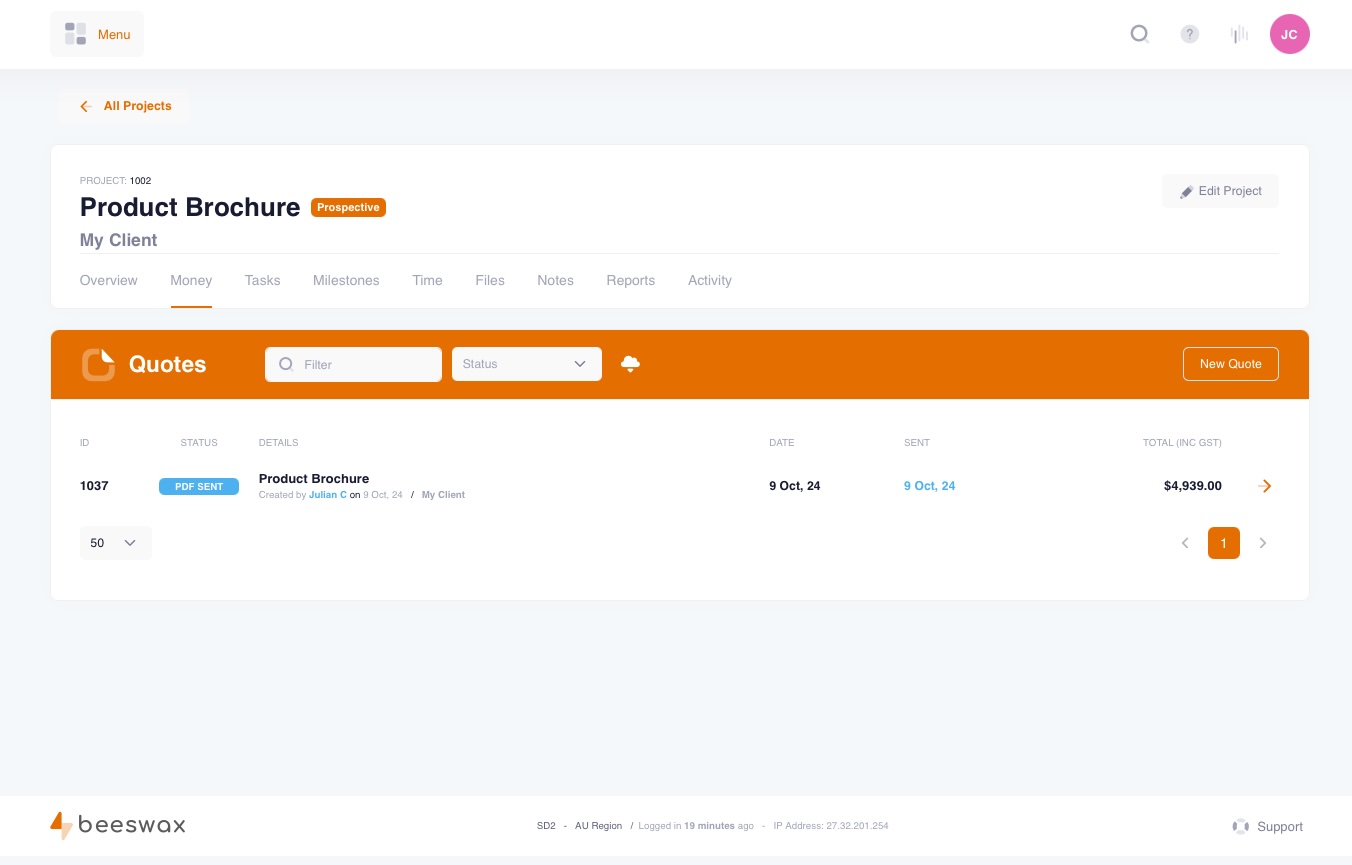
Prepare a Quote
One of the first things you are likely to do after creating a project is prepare a quote. Add line items, set quantities, apply tax rates and preview before sending.
- Multiple quote versions per project
- Customisable templates and branding
- Tax-inclusive or exclusive pricing
- Optional discount line items
Quotes & Estimates
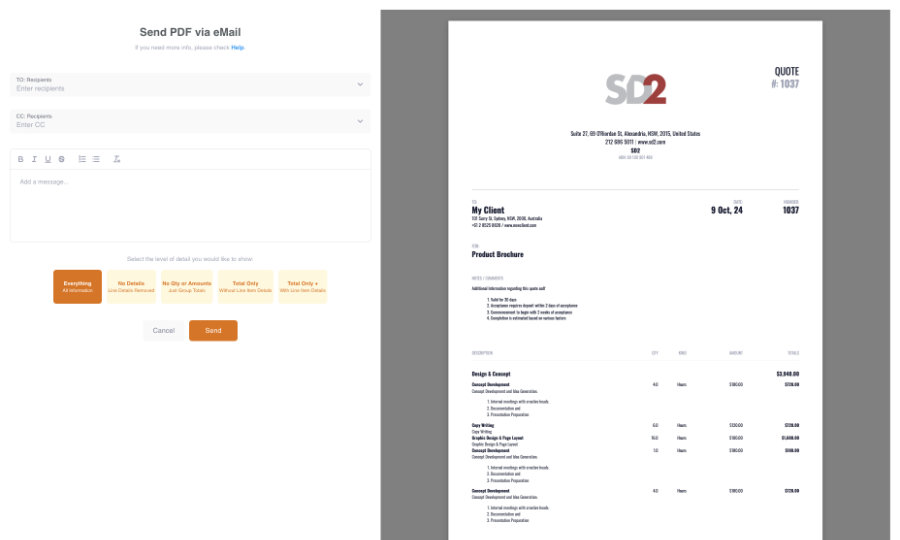
Preview & Send a Quote
Preview your quote at any time to see how it looks. When you're happy, send it directly to your client via email — complete with your branding and a professional PDF attachment.
- Live PDF preview before sending
- Email delivery with branded PDF
- Client portal for online viewing
Quotes & Estimates
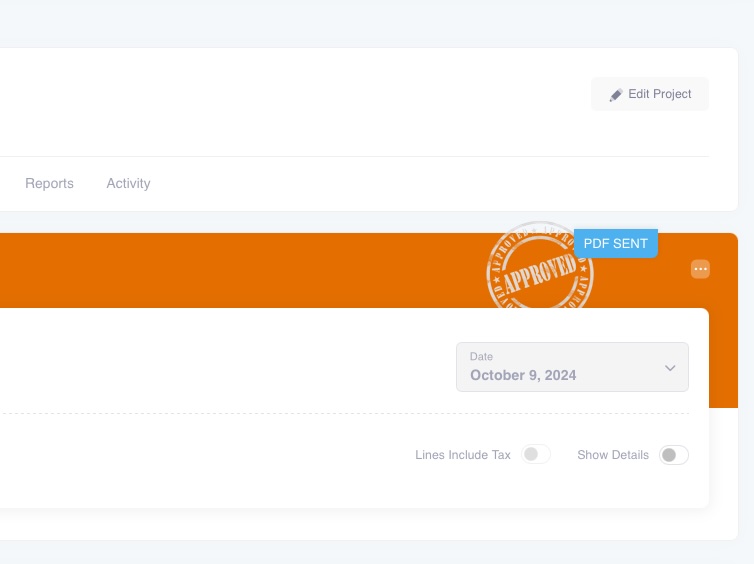
Mark Quote as Approved
When your client approves one of your quotes, mark it as approved and the whole team knows the scope is locked in. The approved quote becomes the baseline for tasks, milestones and invoicing.
- One-click approval status
- Team-wide visibility on approved scope
- Automatic budget baseline from quote
Tasks & Milestones
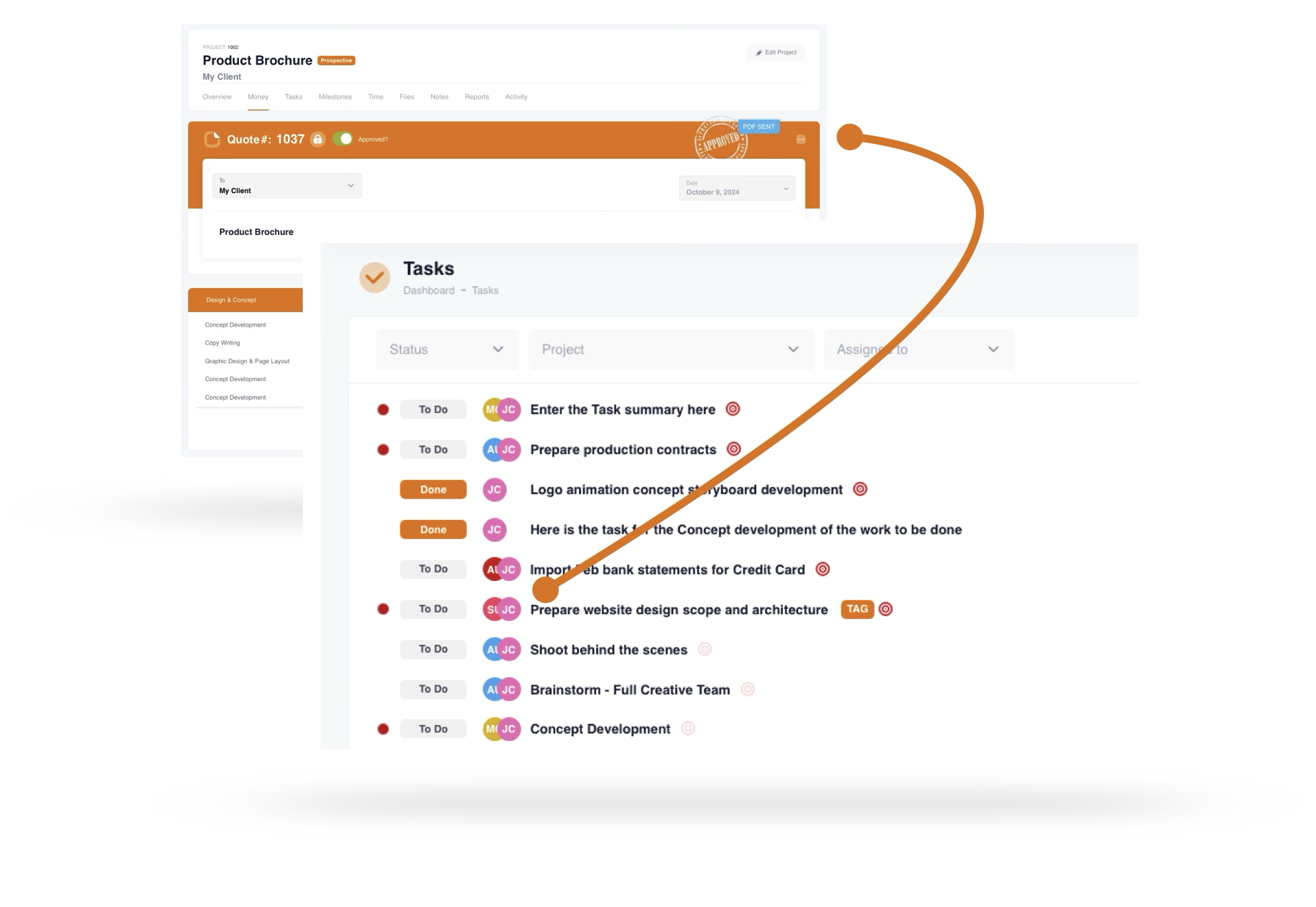
Create Tasks & Milestones
from Quotes
Whether you have a team of two or 200, our shared team task manager keeps everyone aligned. Create tasks directly from quote line items, set milestones and assign due dates.
Simple Milestones
Never Miss a Deadline
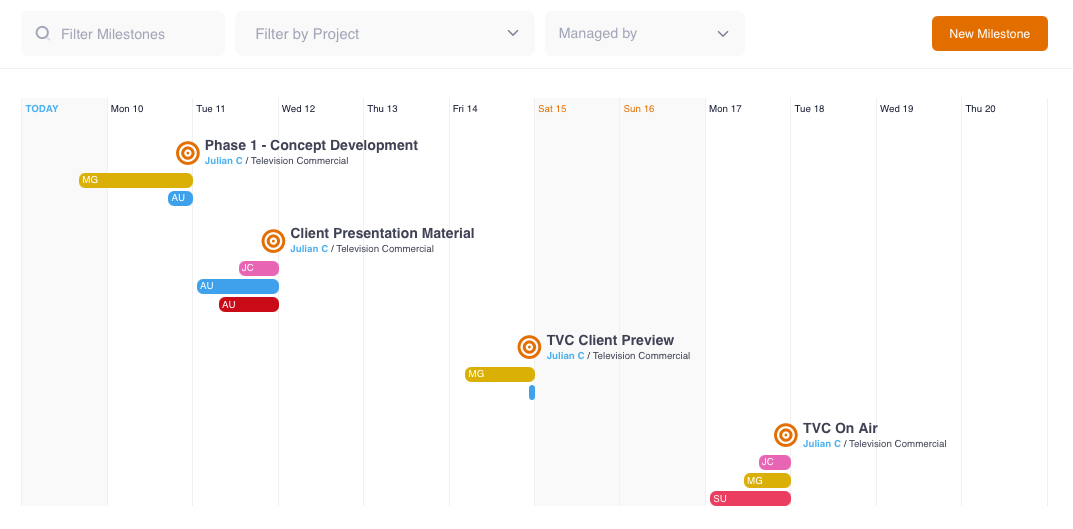
Your Dashboard gives you a visual check on any upcoming milestones. Calendar view and Gantt charts keep your team on track.
- View in Calendar or Gantt View
- Ensure you meet your deadlines
- Tasks can be connected to Milestones
Tasks
Manage Tasks
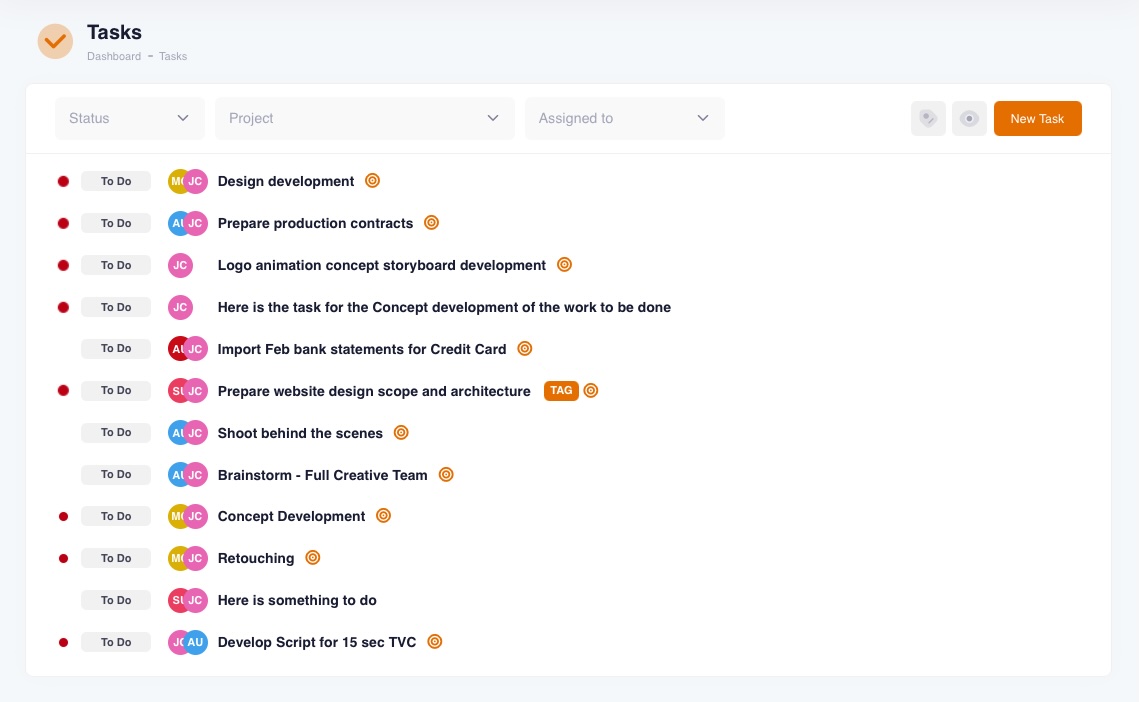
Control who does what and when via the Task Manager. Assign tasks, set priorities, track time and manage state transitions — all from one centralised view.
- Drag-and-drop task prioritisation
- Built-in time tracking with one-click timers
- Task states and workflow transitions
- Filter by project, assignee, or state
Expenses
Take Control of Project Expenses
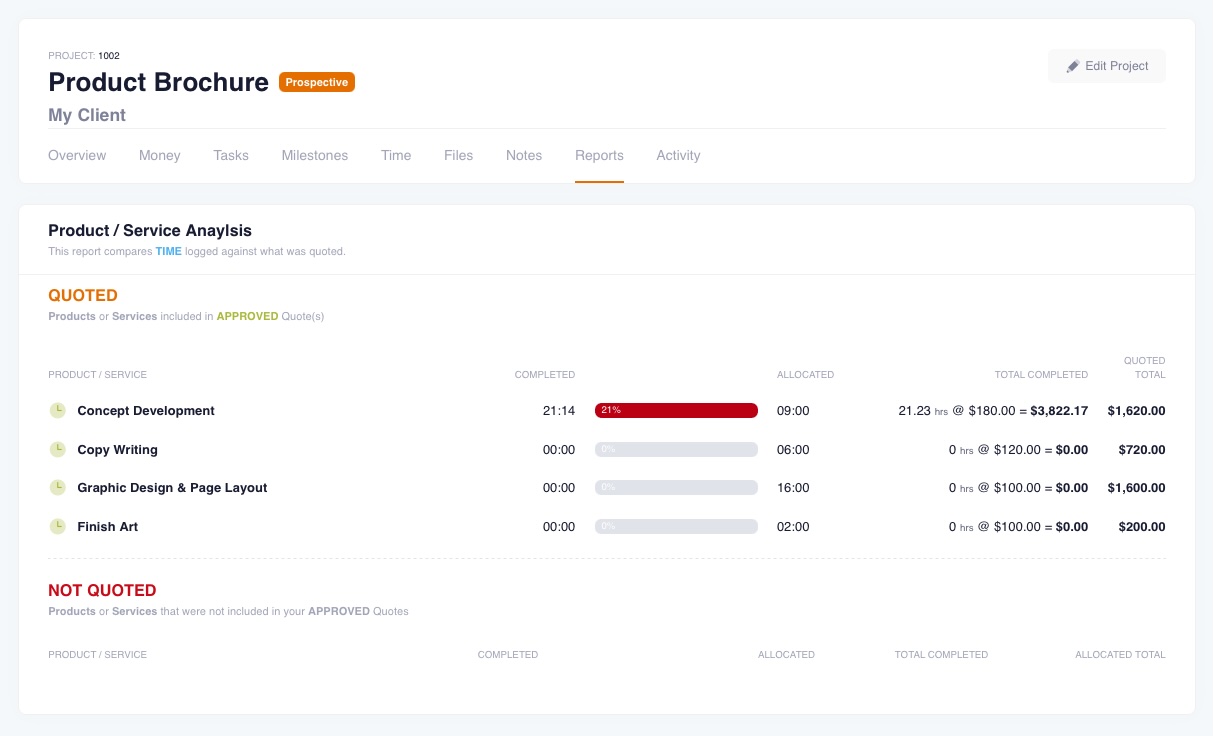
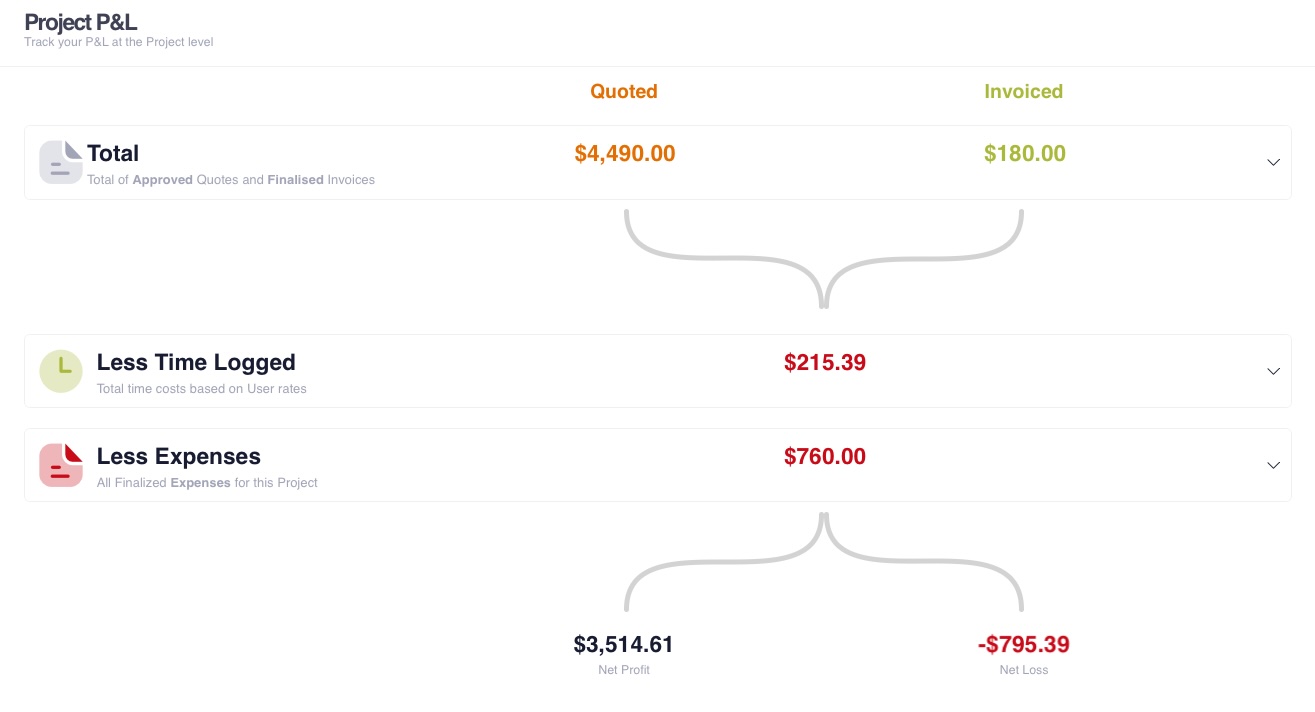
Add Expenses (AKA Purchase Orders) under your Project so you can report on Products & Services and view a Project P&L at any time.
- Track expenses against projects
- Report on Products & Services
- View a Project P&L snapshot
Project P&L
Check Project Financials
View the Project Snapshot to see how your Project is tracking financially. Revenue vs expenses, profit margins and budget utilisation — all in real time.
Invoicing
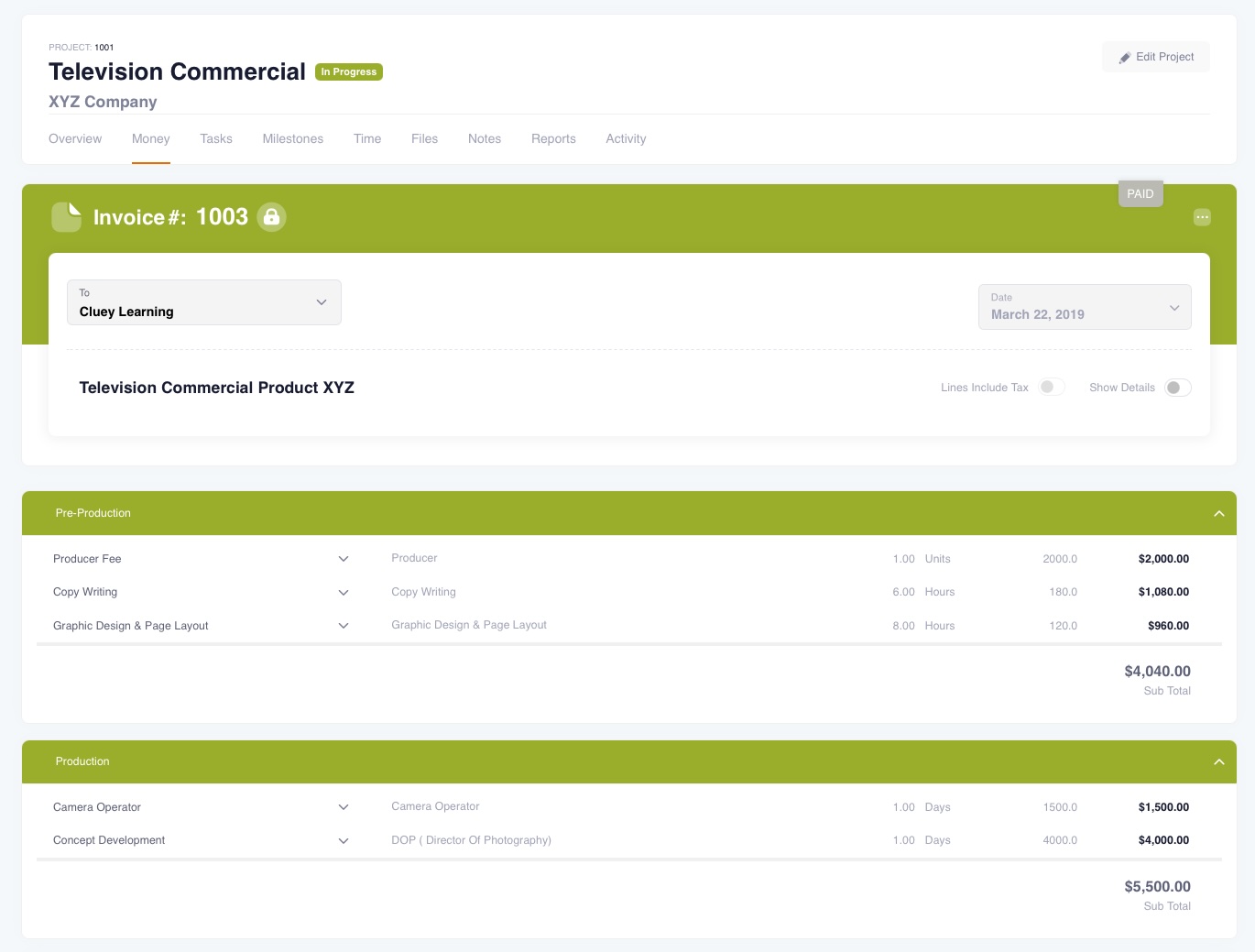
Invoice your Project
Once you're done, you can invoice the project. Create invoices from time entries, quote line items, or build them from scratch.
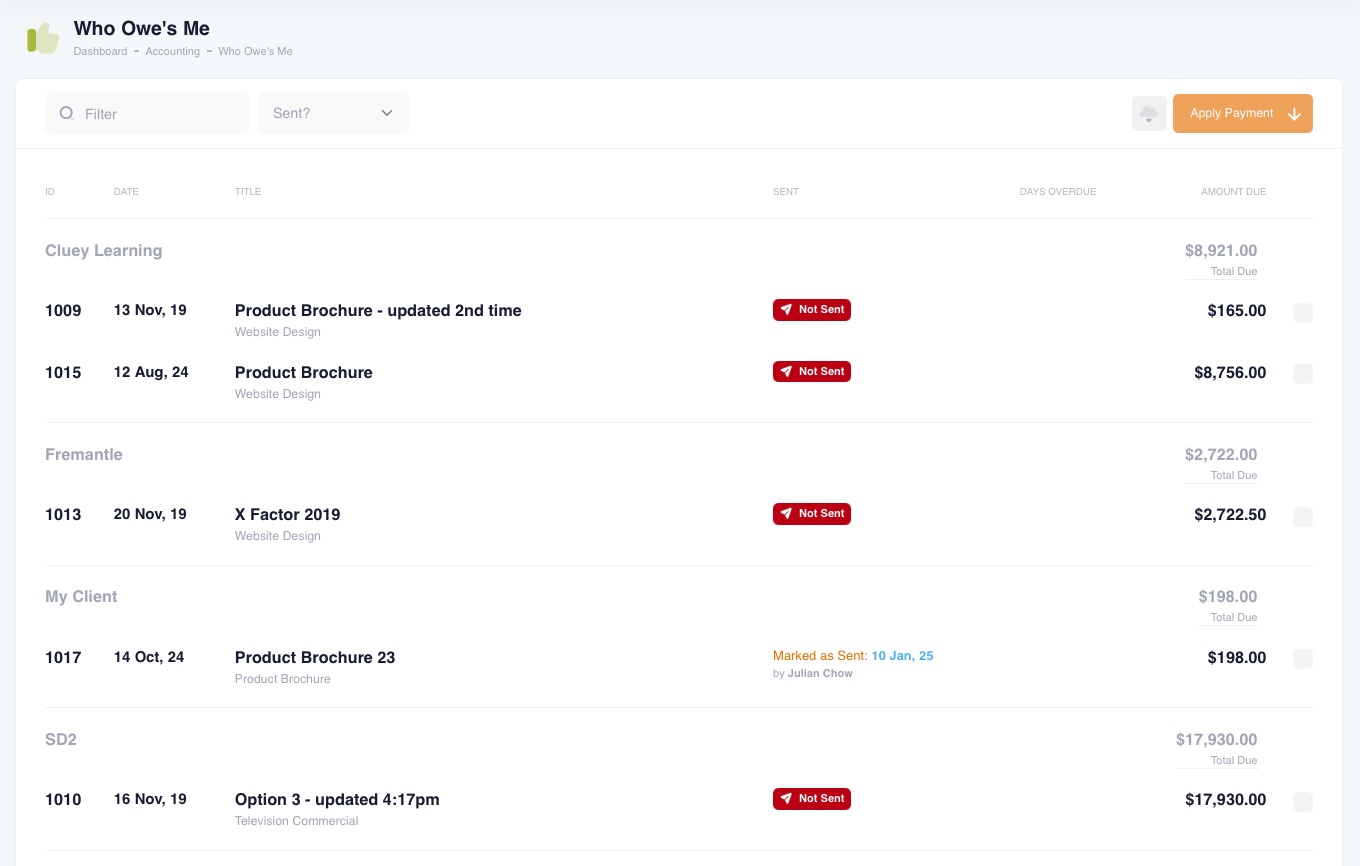
Who Owes Me?
See what's Outstanding
Keep track of all outstanding invoices with the "Who Owes Me" report. See who owes what, how overdue it is and follow up with a single click.
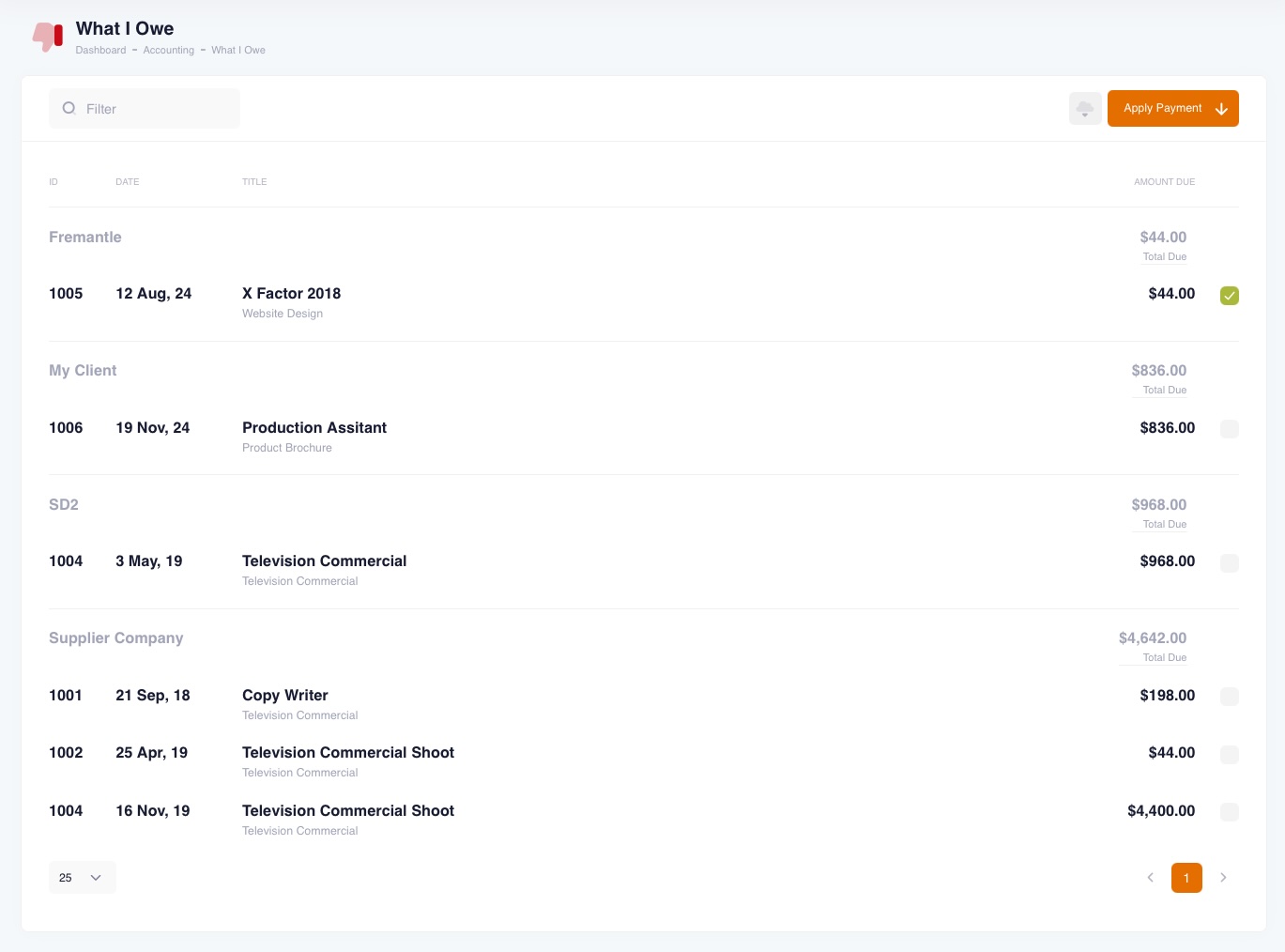
Expense Payments
Approve Payments
Decide who gets paid and when. A simple but effective workflow to take control over your precious cash flow.
- Decide who gets paid and when
- A simple but effective workflow
- Take control over your precious cash flow
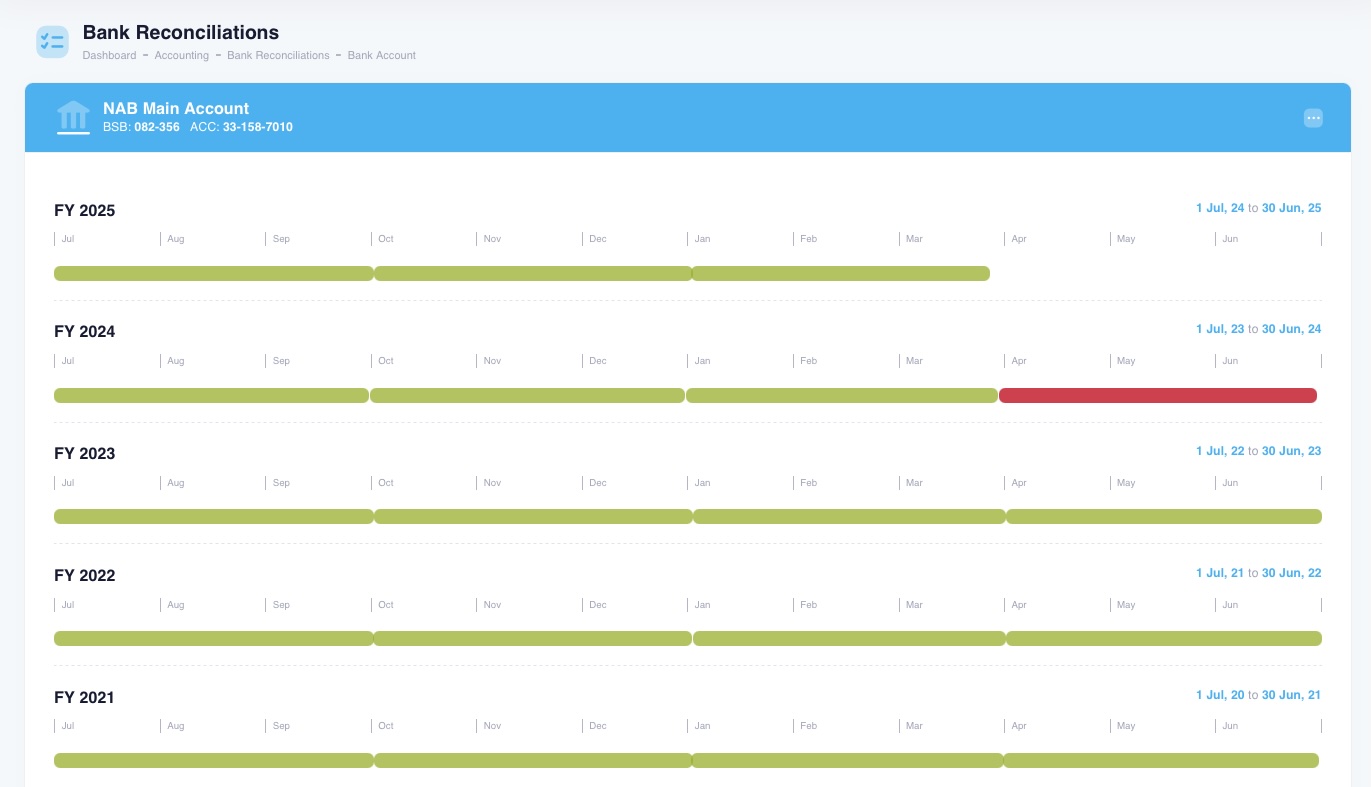
Bank Reconciliation
Reconcile your Bank Accounts
One of the most important accounting activities each month. Match bank transactions to invoices and expenses to keep your books accurate and up to date.
- If something isn't right, you'll see it
- If things change, you'll see it
- Auto-matching and smart suggestions
Oh, and one more thing
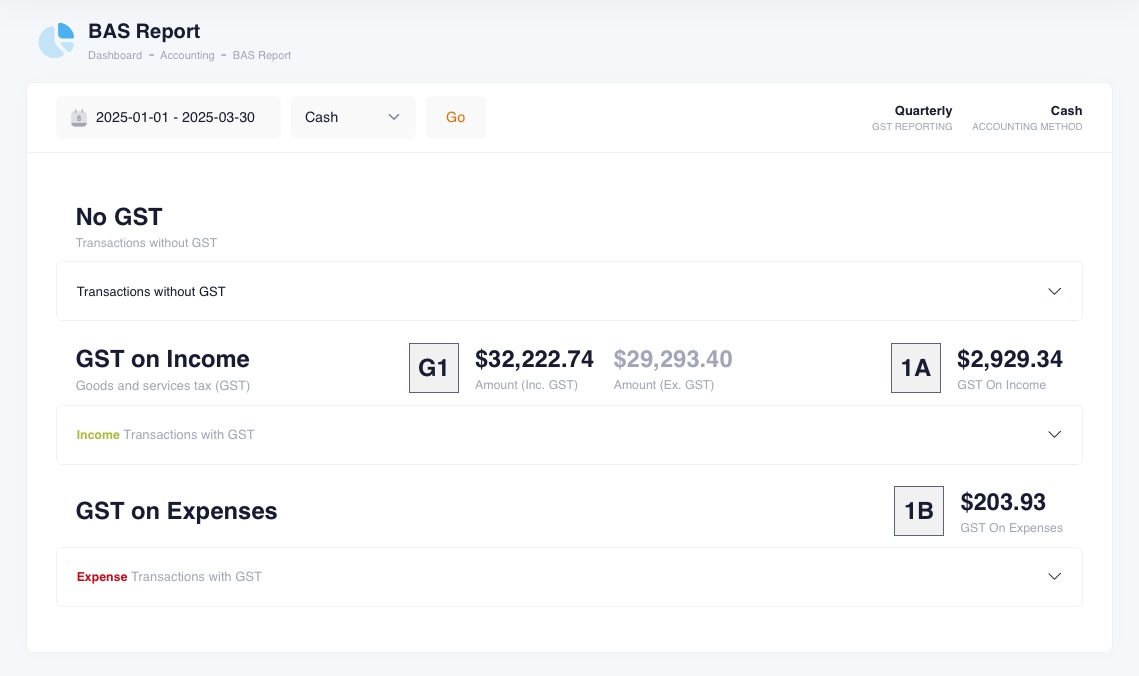
Tax Reports
Prepare your TAX, VAT, BAS, GST (whatever you call it) report in minutes. All your transactions are already categorised, so generating your activity statement is a breeze.
See the full workflow in action
Start your free 60-day trial and discover how Beeswax takes you from project creation to reconciliation — all in one app.